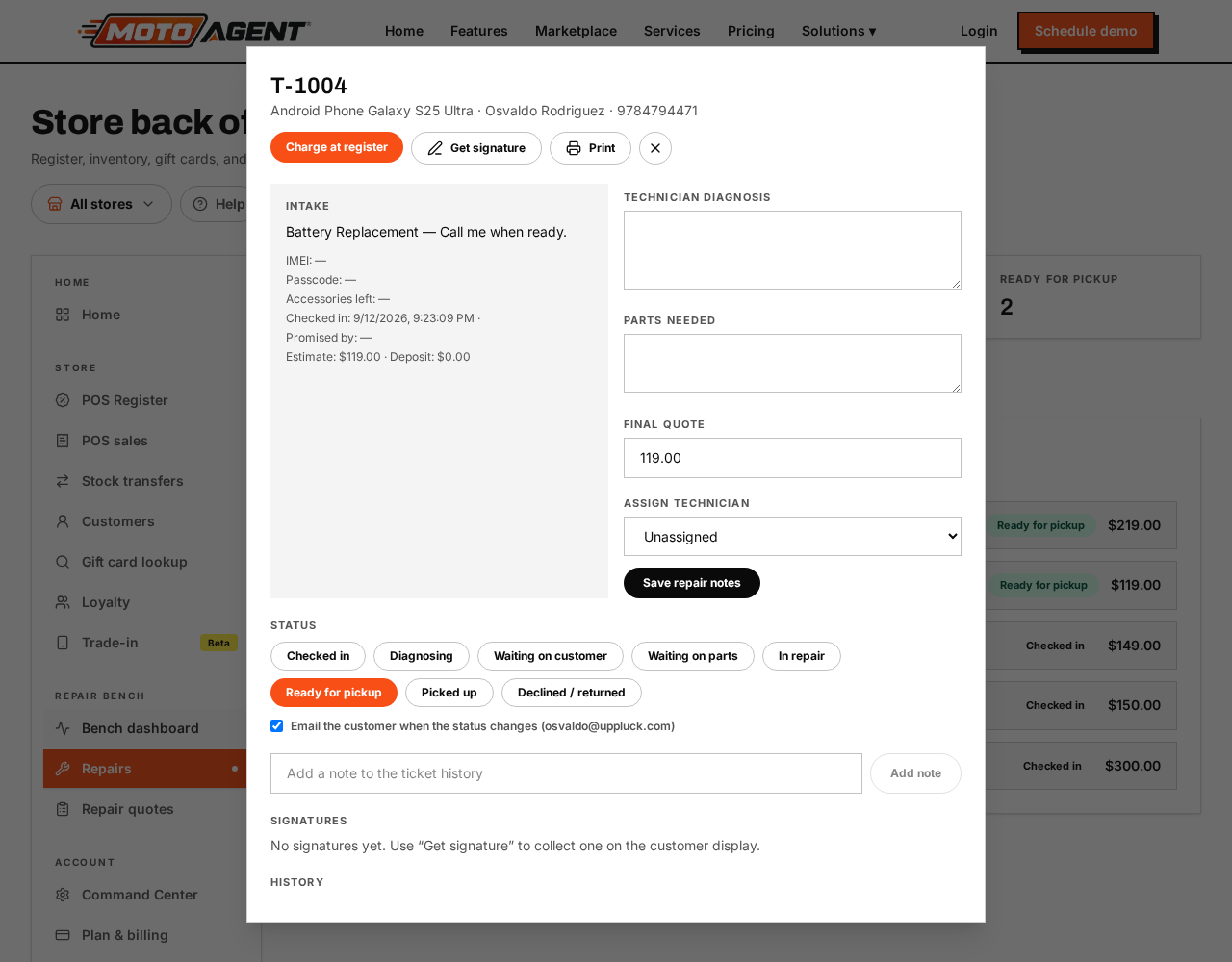
- Open Repairs in the left menu and tap New ticket.
- Enter the customer, or pick an existing one.
- Add the device: make, model, colour, IMEI or serial, and passcode if the customer gives one.
- Note the fault, what you can see already damaged, and tick the pre-repair checks.
- Add the service and price, and take a deposit if you want one.
- Save. The customer gets a ticket number and a status link.
Finish a repair at the register
- Enter and save the final repair price.
- Move the ticket to Ready for pickup.
- Open the ticket and choose Charge at register.
- Complete payment at the register. The ticket is marked Picked up automatically.
If a repair payment is fully refunded, the old receipt is removed from the ticket and the balance reopens so the repair can be charged again.
Edit what customers read and sign
Open Command Center → Store → Receipts & customer screen. It has three tabs: Receipt (what prints, with a live sample), Signature terms (repair authorization, purchase, refund or return, each with a tablet preview and a restore default wording button), and Customer screen (screen name, tagline and promo images). Wording is set once and used at every location. Leave a box empty to keep the standard wording. Signatures already on file keep the wording that was signed at the time.
Write the diagnosis with AI
Type the diagnosis and the parts you need in your own words, then press Improve with AI. It rewrites your notes in clean, customer friendly English without inventing parts, prices or findings. Press Use this wording to keep it or Keep mine to ignore it. Nothing is saved until you save the repair notes.
Original quote and revised quote
The ticket now shows the Original quote the customer was given up front, separate from a Revised quote you send when you find something else broken. Enter the new price, say what changed, and press Send to customer for approval. The customer gets an email showing the old price, the new price and the difference, with Approve and Decline buttons. Approving sets the new price and moves the repair forward. Declining marks the ticket declined so nobody keeps working on it. The ticket shows whether you are still waiting on the customer, or what they answered and when.
Finish check in after a quote
When you turn a quote into a repair ticket, the Finish check in card opens straight away. Everything the quote already captured is shown read only: customer, device, reported issue and the quoted price. You only fill in what is missing: color, IMEI or serial, passcode, accessories left, deposit taken, promised by, technician, priority, warranty days and condition notes. Nothing is required.
If the customer has not handed the device over yet, press Device not dropped off yet. The ticket shows a Check in not finished marker on the repairs board so someone can complete it when the device arrives.
Parts used on a repair
Open a ticket and use Parts used to pick the part out of your own stock. The shelf count drops, the cost is recorded against the job, and the ticket shows the parts cost, the amount charged at pickup and the true profit on the repair. Put back returns the part to stock if you did not use it.
Keep daily work clear
The repair bench opens on active work so completed records do not stack up in the daily list. Pick Archive to find repairs that were picked up or declined. Repair quotes also open on active requests, while converted, won and lost quotes stay available under Archive. Records are kept for customer history, reporting, refunds and audits instead of being deleted.
Use Quote a walk in in the repair bench header to start an in store quote.
Know your statuses
Not sure what a status means or what the customer gets? Tap the ? Status guide button at the top of the Repairs board. It lists every status with a plain meaning and which message goes out. In short:
- Checked in: the customer is emailed the ticket number, device and quoted price.
- Diagnosing: technician is inspecting; no email goes out.
- Waiting on customer: a revised quote was emailed with approve or decline links. The shop is emailed their answer, a flag shows on the board and the bell counts it.
- Waiting on parts / In repair: optional customer update when you tick Notify customer.
- Ready for pickup: set this before charging. The customer is emailed the balance due and store address.
- Picked up / Declined: the ticket closes and moves to the Archive view.
Golden rule: set Ready for pickup before taking payment. Payment on a Ready ticket closes it and files it in the Archive; payment taken earlier only records a deposit and keeps the ticket open.