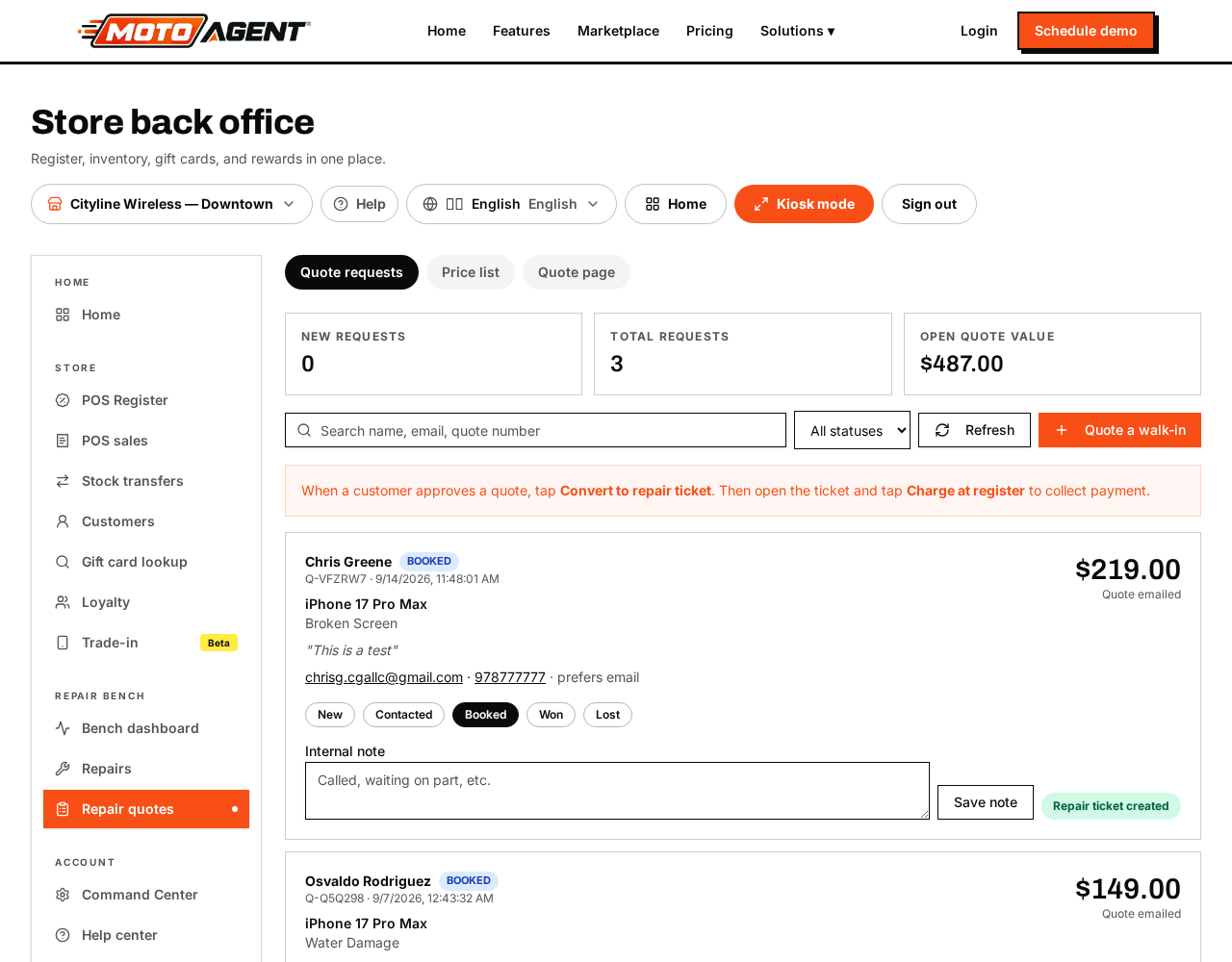
Repair quotes lets customers request a price from your website. Set your published prices under quote settings.
Quote leads live inside the Repair bench on the register. Tap the Repair bench button in the top bar, then open the Repair quotes tab.
When a lead comes in you can adjust it, then tap Convert & charge at register. As soon as the ticket is created, the repair authorization goes to the customer tablet for a signature. Have the customer sign before you hand out the repair ticket, then continue to the register to take payment. The sale keeps the ticket attached, so the repair stays tracked after payment.
The repair ticket prints for the customer either way. Whether they sign on the tablet or you skip the signature, the customer copy prints when you close the signature step so they leave with proof of the device they dropped off and something to bring back at pickup.
When you send a revised quote, the answer comes back to you. The moment the customer approves or declines, the store gets an email, the ticket shows a green "Customer approved new price" or red "Customer declined new price" flag on the repairs board, and a bell in the back office header counts the answers nobody has looked at yet. Opening the ticket clears the flag and the bell.
One intake, not two
Converting a quote no longer skips the counter details. The Finish check in card opens right after the ticket is created, shows what the quote already captured and asks only for the blanks. Then the optional signature step, then the printed customer ticket, then the register.
Keep daily work clear
The repair bench opens on active work so completed records do not stack up in the daily list. Pick Archive to find repairs that were picked up or declined. Repair quotes also open on active requests, while converted, won and lost quotes stay available under Archive. Records are kept for customer history, reporting, refunds and audits instead of being deleted.
Use Quote a walk in in the repair bench header to start an in store quote.